Stackby lets you directly import a Notion database into a new Stack or table. The importer brings your Notion database structure and records into Stackby, making it easy to continue working with your data in Stackby.
From your Stackby workspace, click Import Data.
Select Notion from the available import options.
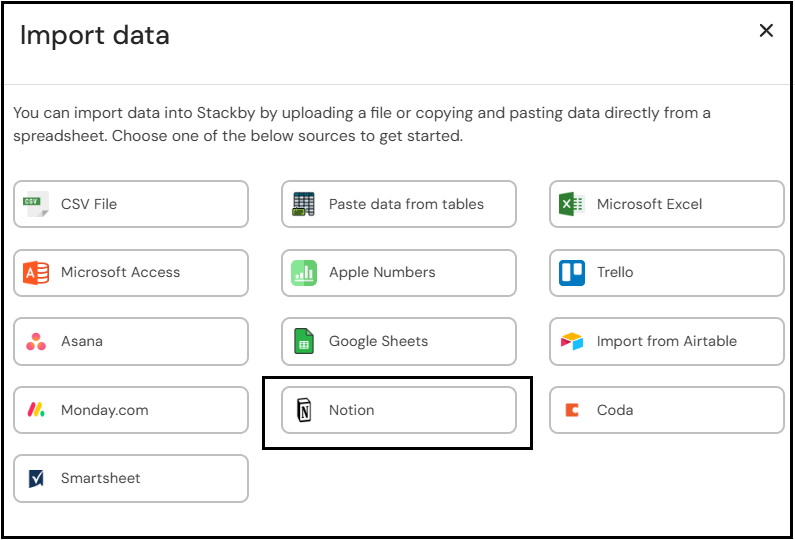
A dialog box titled Import data from Notion will appear.
Enter your Notion Integration Token in the provided field.
The token is required to connect Stackby with your Notion account and access the database you want to import.
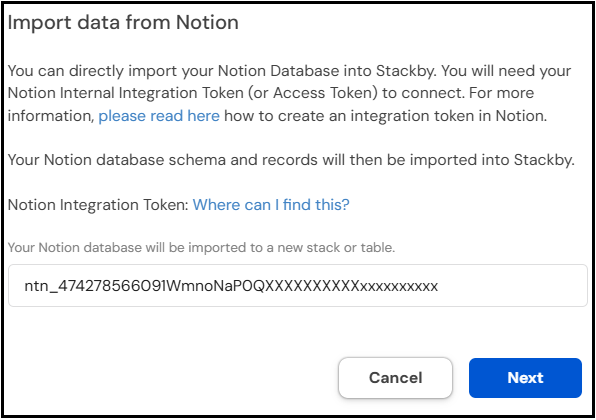
Click Next after entering the token.
Stackby will connect to Notion and retrieve the databases that are available to the integration.
Tip: Make sure the Notion database has been shared with the integration you created. Otherwise, Stackby may not be able to access it.
Select the Notion database you want to import.
Stackby will retrieve the database structure and records.
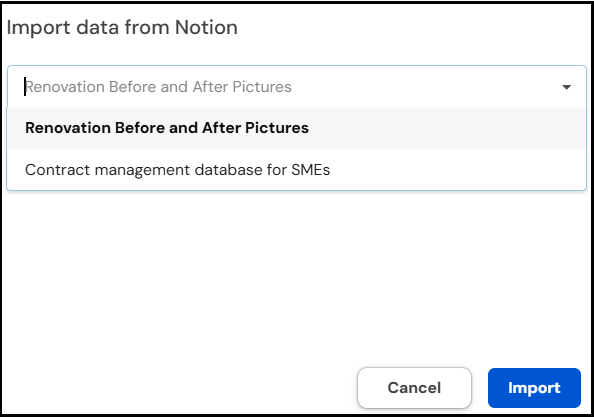
Continue with the import process.
The selected Notion database will be imported into a new Stack or table in Stackby.
Your database schema and records will be transferred so you can continue managing the data using Stackby's views, columns, and other features.
You can create an integration in Notion and generate an Internal Integration Token from your Notion integration settings.
In the Stackby Notion importer, click “please read here” or “Where can I find this?” to access instructions for creating the required token.
Can I import a Notion database directly into Stackby?
Yes. Stackby allows you to directly import a Notion database using a Notion Integration Token.
What do I need to import from Notion?
You need a valid Notion Internal Integration Token (Access Token) and access to the database you want to import.
Will my Notion records be imported?
Yes. The importer brings the Notion database schema and records into Stackby.
Where is the imported database created?
The Notion database is imported into a new Stack or table in Stackby.
What if my Notion database does not appear?
Make sure the database has been shared with the Notion integration associated with your token, and then try connecting again.