Watch a quick tutorial on Gallery Views:
You can now create your mood boards, directories, art showcase and more with the Gallery View.
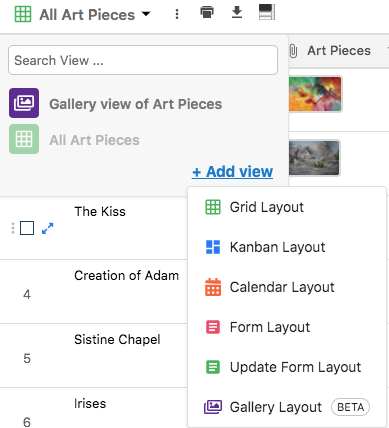
You can configure a gallery view by selecting from the 'Create view' dropdown.
You can customize your gallery cards, the way you'd like to see.
Open the 'Customize Card' dropdown.
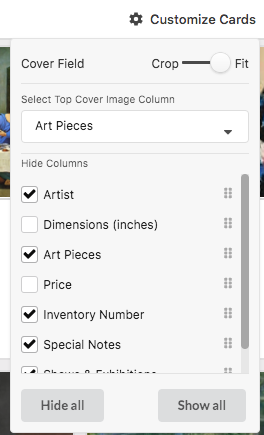
Use Crop and fit - To change the image sizing on the preview.
Select information to show in cards - To hide or show the column properties in cards
By clicking on the '+' sign
You can also create a new card by clicking on the '+' icon on the bottom right corner of the view.
By dragging and dropping your files and attachments
Now you can search any record in gallery view. It will work the same like grid search bar.
You can enter 'Apply' on the Search panel to get your search responses in real-time.
You can also toggle after the search result, using the up/down icons or pressing ENTER on the search box and see the count of your search result.

Creative assets
Moodboards
Art and Photography
Digital Assets
File Management
People Management
Job Boards
Directories
And whatever you can think of :)
If you have over 10K records and have most columns on display, please give it some time to render. Use this to show only the relevant info you need to display for the best experience.