The User Management page in the Stackby Admin Panel allows administrators to manage all users within the organization. From a single page, you can view user details, monitor account activity, manage invitations, filter users, and export user data.
Open the Admin Panel.
Click User Management from the left sidebar.
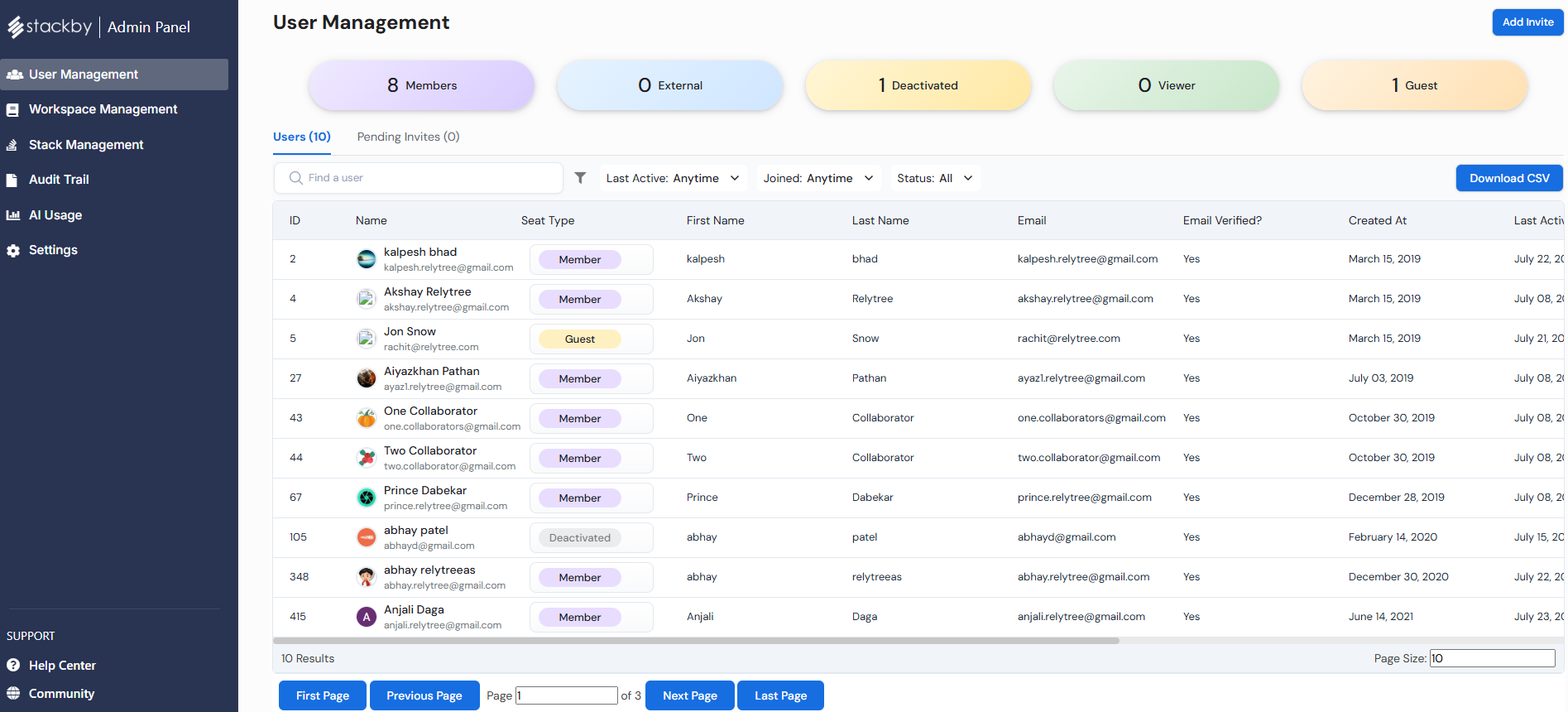
The User Management page displays all users and pending invitations.
At the top of the page, you'll find summary cards showing the current user distribution:
Card | Description |
Members | Total number of active member accounts. |
External | Total number of external users. |
Deactivated | Number of deactivated user accounts. |
Viewer | Total users with Viewer access. |
Guest | Total guest users. |
These cards provide a quick overview of your organization's users.
Click Add Invite to send an invitation to a new user to join your organization.
The page contains two tabs:
Users – Displays all existing users.
Pending Invites – Displays invitations that have been sent but not yet accepted.
Use the Search box to quickly find a user by name or email address.
Use the available filters to narrow down the user list.
Available filters include:
Last Active
Joined
Status
These filters help locate users based on their activity or account status.
Click Download CSV to export the current list of users and their details.
The file will include the following columns of data:
User ID,
User first name,
User last name,
User email,
Email verified,
Created At,
Last Activity,
State,
2FA enabled?
SSO required?
Each user record includes the following information:
Field | Description |
ID | Unique user ID. |
Name | User's display name. |
Seat Type | User role (Member, Guest, etc.). |
First Name | User's first name. |
Last Name | User's last name. |
Registered email address. | |
Email Verified | Indicates whether the user's email has been verified. |
Created At | Date the account was created. |
Last Activity | Most recent activity date. |
Status | Current account status (Active or Deactivated). |
2FA Enabled | Indicates whether Two-Factor Authentication is enabled. |
SSO Required | Shows whether Single Sign-On is required for the user. |
Click the Menu (☰) icon beside a user to access available administrative actions.
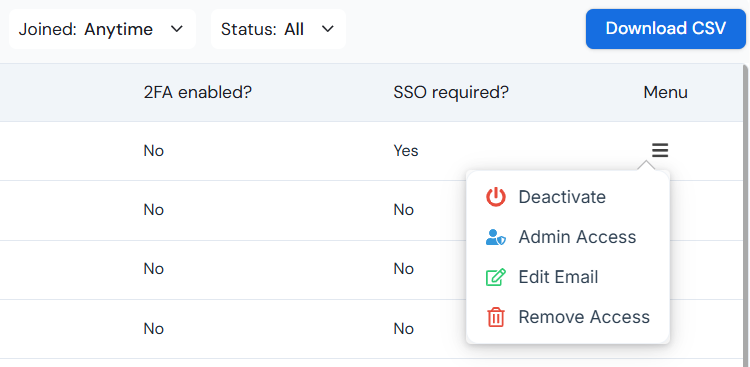
Depending on your organization's settings, you may be able to:
Deactivate
Admin Access
Edit Email
Remove Access
Can I invite new users?
Yes. Click Add Invite to send an invitation to a new user.
Where can I see pending invitations?
Open the Pending Invites tab to view all invitations that have not yet been accepted.
Can I export the user list?
Yes. Click Download CSV to export user details into a CSV file.
What does the Seat Type indicate?
The Seat Type shows the user's access level, such as Member, Guest, or other available roles.
How do I know if a user's email is verified?
Check the Email Verified column. It displays whether the user has verified their email address.
Can I see if a user has enabled Two-Factor Authentication?
Yes. The 2FA Enabled column indicates whether Two-Factor Authentication is enabled for each user.
What does the SSO Required column mean?
It indicates whether the user is required to sign in using Single Sign-On (SSO) based on your organization's authentication settings.