In this article,
Overview
Adding the matrix app
Setting up and customizing the Matrix app
Record color
FAQ
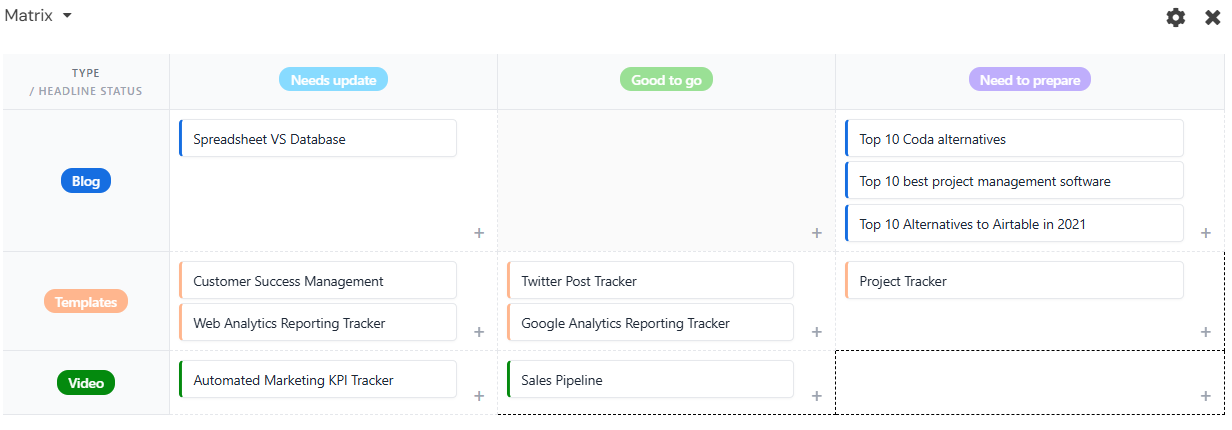
The Matrix app allows you to visualize your records as cards on a two-dimensional grid. Simply choose one column for the matrix rows and another for the matrix columns to organize, prioritize, and compare tasks, projects, objectives, or initiatives. You can also drag and drop cards within the matrix to update their position, automatically changing the corresponding row and column values.
Open your Stackby home screen.
Create or open the stack where you want to install the Matrix app.
Click Apps in the upper-right corner or from the stack toolbar.
Click Apps Marketplace.
Search for and locate the Matrix app.
Click Add app.
When you first install the Matrix app, it opens automatically to the app's settings. From the settings, you will need to pick the table and view containing the rows you want to visualize.
Next, pick a column to define the rows of the matrix and a column to define the columns of the matrix. The Matrix app currently supports the following column types for rows/columns:
Single select and Multiple select columns
Single and Multiple collaborator columns
Rating columns
Checkbox columns
Once you've selected the columns for rows and columns, the Matrix app will plot your rows in the cells according to the values in their row and column columns.
By default, your matrix will include a row and a column for rows with empty values in the associated columns. This is useful for moving cards around if you haven't decided how you want certain values assigned, or if you want to move rows around to clear their values.
If you want to hide the row and/or column for empty values, click the toggles that say "Only show rows with rows" or "Only show columns with rows" as desired.
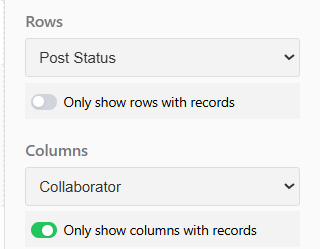
Note that the information above does not apply to rows or columns defined by a checkbox column, since the only possible values for a checkbox column are checked and unchecked.
The Record Color option lets you customize how cards are displayed in the Matrix app.
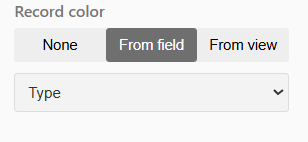
You can choose from the following options:
None – Displays all cards with the no color.
From field – Applies colors based on the values of a selected Single Select or Status field. Choose the desired field from the dropdown to automatically color-code your records.
From view – Uses the record color settings already configured in the selected view, ensuring consistent colors across different views.
Color-coded records make it easier to identify categories, priorities, statuses, or other important information at a glance within the matrix.
What column types are supported for matrix rows and columns?
The Matrix app supports single select, multiple select, single collaborator, multiple collaborator, rating, and checkbox column types. Text, number, date, and other column types are not supported as matrix axes.
Can I drag and drop rows to change their values?
Yes. You can drag a row card from one cell to another to update the values in its row column and column column simultaneously. This is a fast way to reprioritize work without opening each row individually.
What happens to rows with empty values in my row or column columns?
By default, an "empty" row or column appears in the matrix for rows that don't have a value assigned. You can hide these by toggling on "Only show rows with rows" or "Only show columns with rows" in the app settings. This is not applicable to checkbox columns, which always have a checked or unchecked state.
Can I reorder the options shown in the matrix?
Yes. If the column used for rows or columns is a single select column, you can reorder the select options by going to the column settings and rearranging the options. The matrix will reflect that updated order.
Can I have multiple Matrix apps in the same stack?
Yes. You can add multiple instances of the Matrix app to the same stack, each configured for a different table, view, or pair of columns.
Is it possible to export the matrix as an image or PDF?
Currently, the Matrix app does not have a native export feature. You can take a screenshot of the matrix for use in presentations or documents.