Importing CSV file in Stackby
Create your new stack.
Click on “+ Add or import Table”.
Click on Import Data
Click the CSV file.
Click on Choose a .CSV file.
A new window opens to browse files to upload.
After selecting the file you want to upload, click the Upload button.
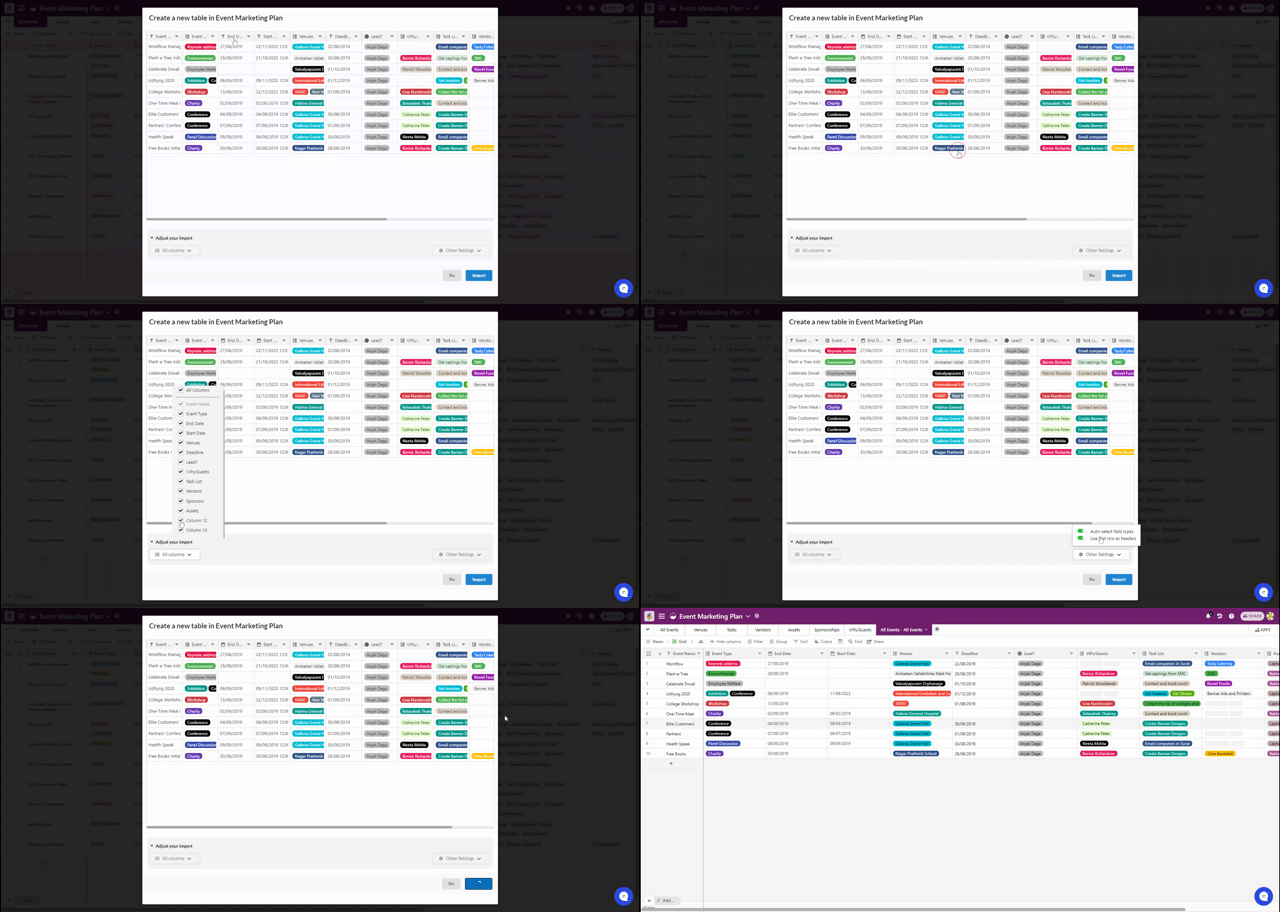
Another window appears that includes the "Adjust your import" section. From here, you can manually select columns to include and toggle ON/OFF the ability to "Auto-select field types" and "Use the first row as headers."
Click Import.