Stackby’s two-way email sync lets you seamlessly manage emails directly within your records by syncing emails back and forth between your inbox and Stackby. This ensures all communication stays connected to the relevant data, making collaboration and tracking easier than ever.
Two-way email sync allows Stackby to not only send emails from your records but also receive and automatically link incoming replies back to the corresponding rows. This keeps your email conversation history organized within Stackby, eliminating the need to switch between apps.
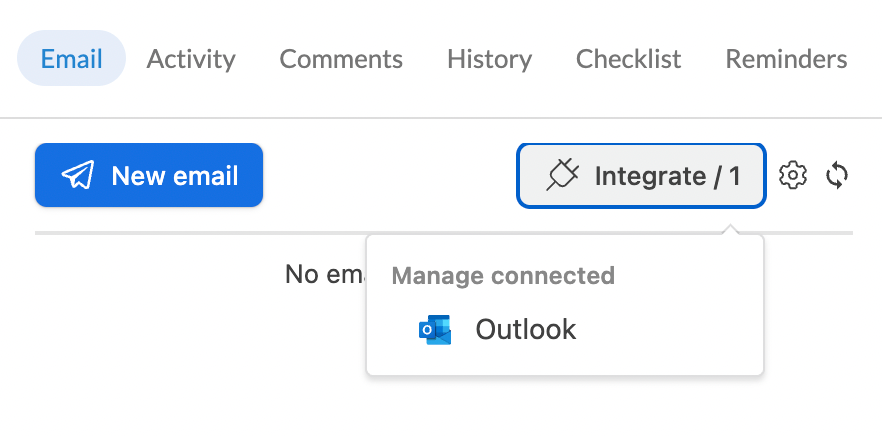
Expand your Stackby record and go to ‘Email’
Connect Your Email Account
Click on ‘Integrate’ in Stackby.
Find the Email Sync option and choose your email provider (e.g., Gmail, Outlook).
Authenticate and authorize Stackby to access your outlook email account securely.
Add your Account
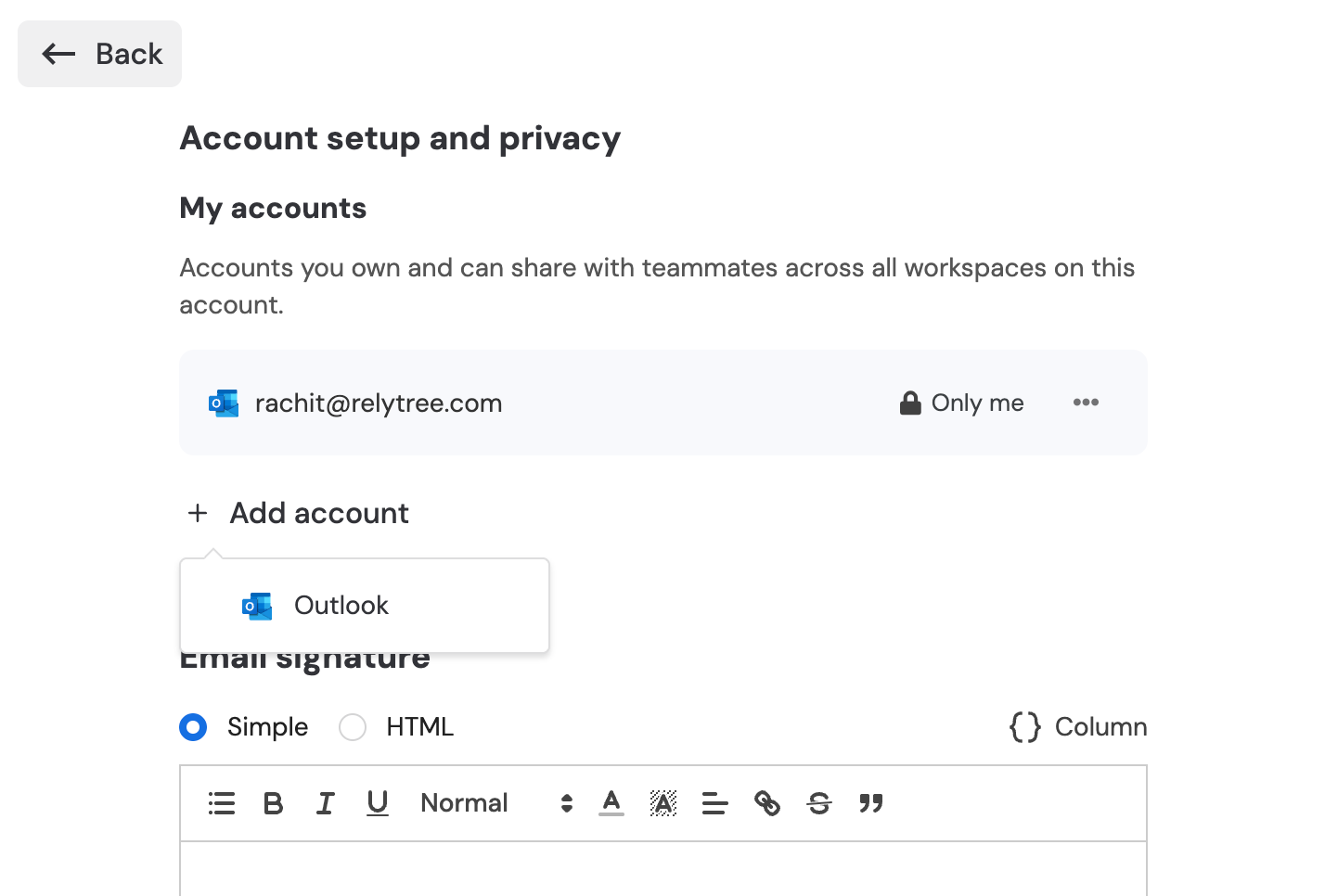
Click on ‘Add Account’ and authorize your email account
Optional: You can also add email signature
Send Email
Click on ‘New Email’ and it will auto open the email model with different fields: To, CC, BCC, Subject and Body.
Note: If you have an email field in the table, it will automatically take that email in the ‘To’ field to send.
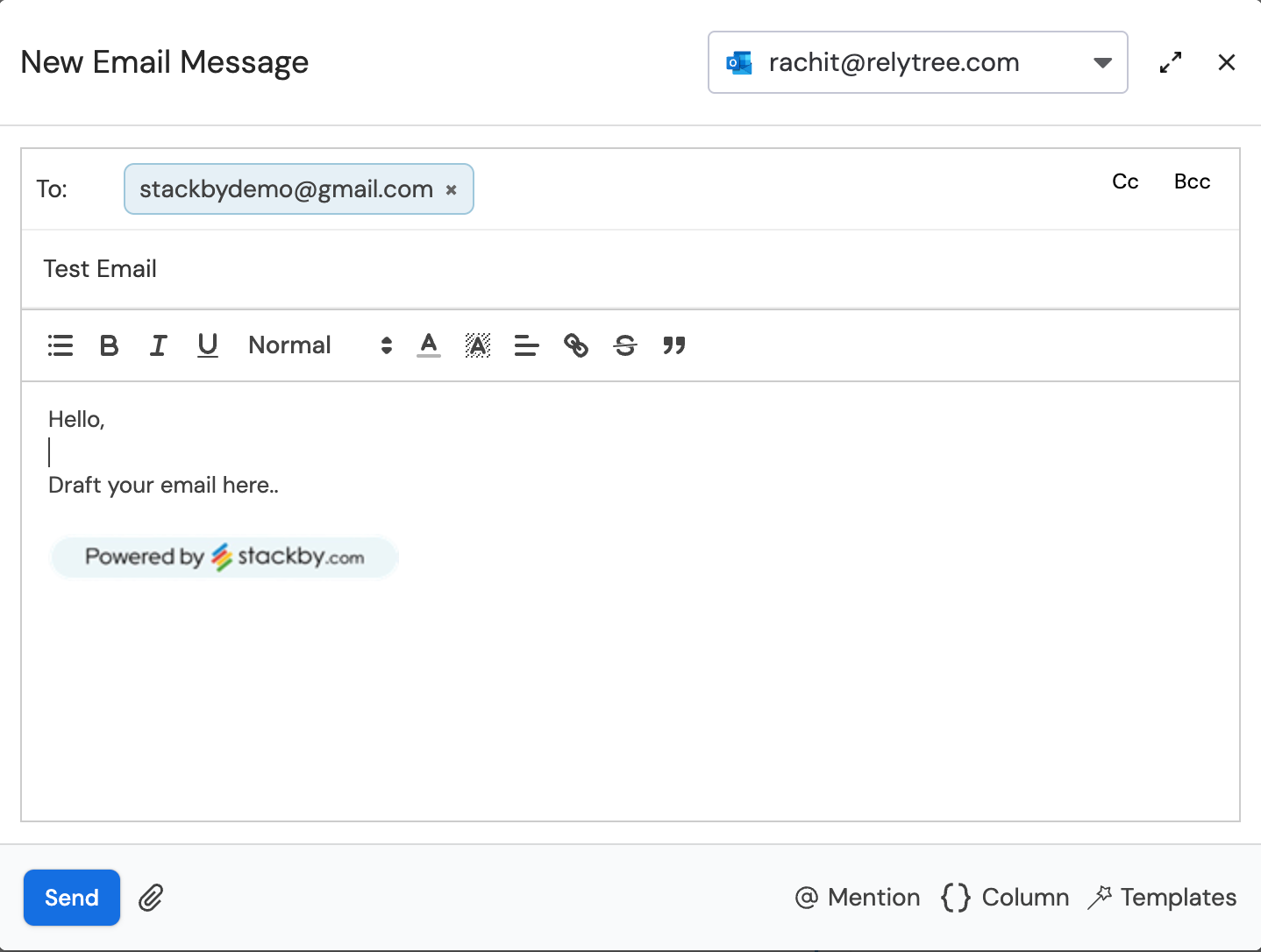
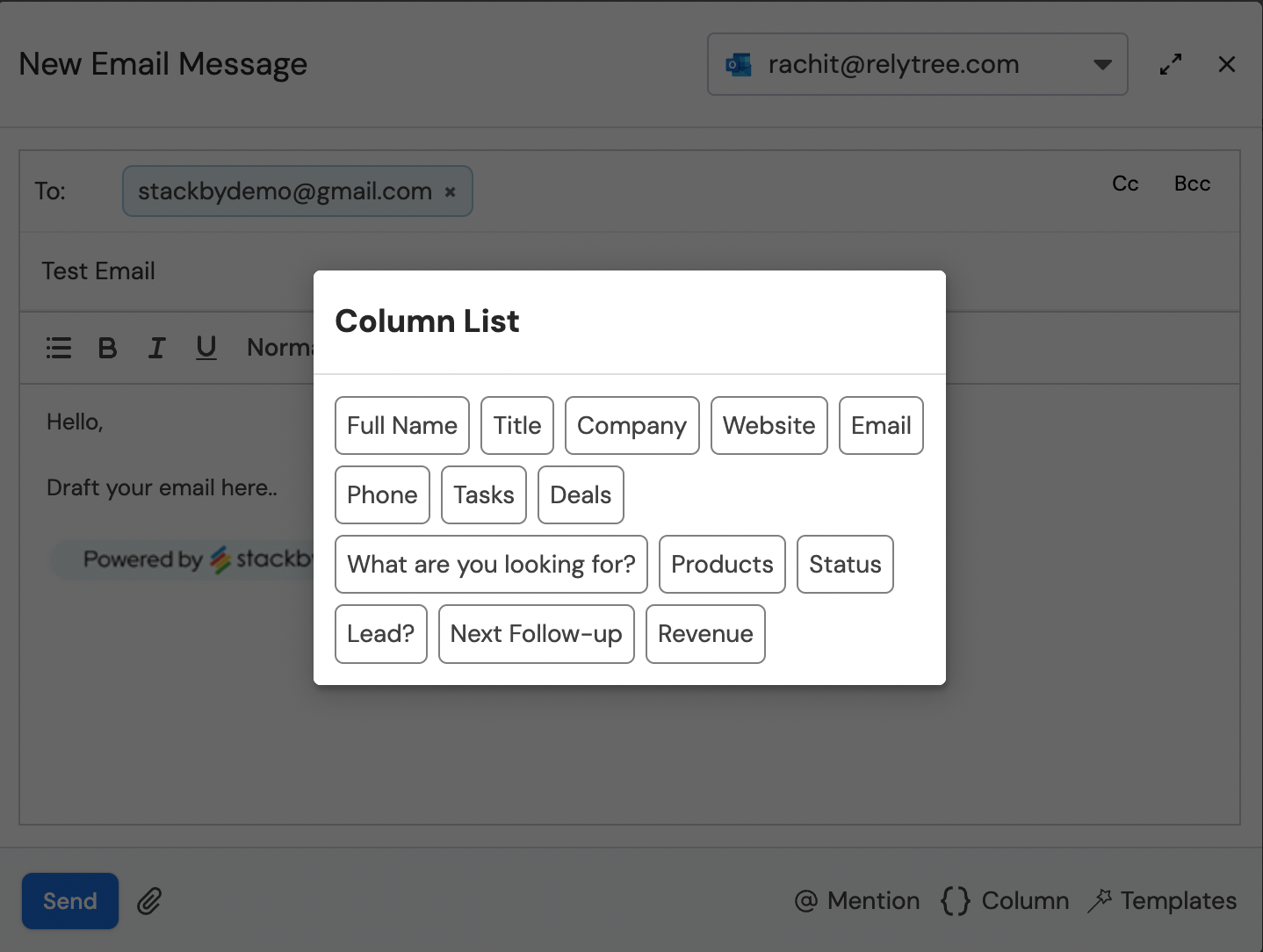
You can place dynamic column variables or mention anyone on the subject and body part of the email model. Once the email is drafted, you can click on ‘Send’.
Receive Email
Once that email is being replied on, you will see the email threads visible on the tab. You can open each of the threads and choose to reply or forward that email.
Create Email Templates
You can also create email templates and choose from one of the templates to populate the email body and subject.
Sending Emails: Send emails directly from a record by clicking the send email option. The email will appear in your connected email provider’s Sent folder as well.
Receiving Emails: Incoming replies to those emails will be automatically linked back to the matching record using the synced email thread ID or matching recipient email. This keeps the email thread visible within Stackby.
Email History: You can view the entire email conversation history from the related record's email activity or comments section.
Emails not linking to records: Verify the email addresses and field mappings. Sync works best with unique email addresses per record. Just hit the refresh icon to reload the email threads.
Replies not syncing: Check your email connection in Integrations for any expired permissions and re-authenticate if needed.
Delays in syncing: Email sync relies on your provider’s API; occasional delays are normal but usually brief.