
Stackby’s Automation Action – Gmail allows you to seamlessly connect your workflows with Gmail. With this, you can automatically send personalized emails from your Gmail account whenever certain triggers or conditions are met in your Stackby tables.
How to set up Gmail Automation in Stackby
Step 1: Go to your table in Stackby. Click on the Automations tab from the top bar. Click + Add Automation.
Step 2: Select when the Gmail action should run. Example triggers:
When a row is created
When a row is updated
At a scheduled time
Step 3: Add Gmail Action
After selecting your trigger, click + Add Action.
Choose Gmail → Send Email.
Authenticate your Gmail account with Stackby (one-time setup).
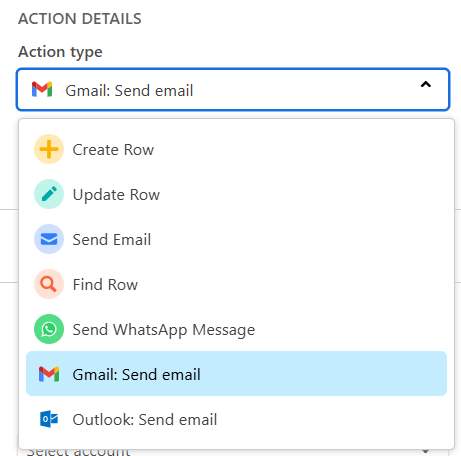
Step 4: Configure Email Settings
To: Choose an email column from your table or enter a fixed email address.
CC / BCC (optional): Add additional recipients.
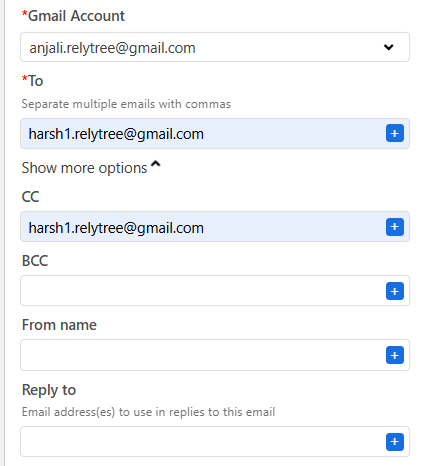
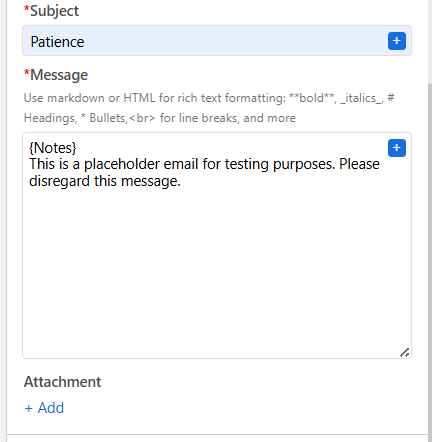
Subject: Enter a subject line, or use dynamic fields from your table (e.g., {Client Name}, {Project}).
Message Body: Write your message. You can insert placeholders from your Stackby fields to personalize the content.
Attachments: Pull from file/attachment columns in your table.
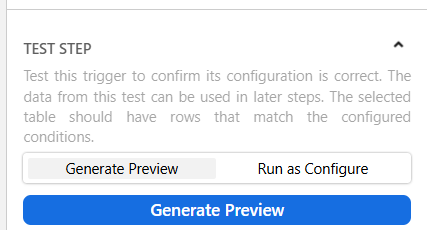
Step 5: Click Test Action to send a test email.
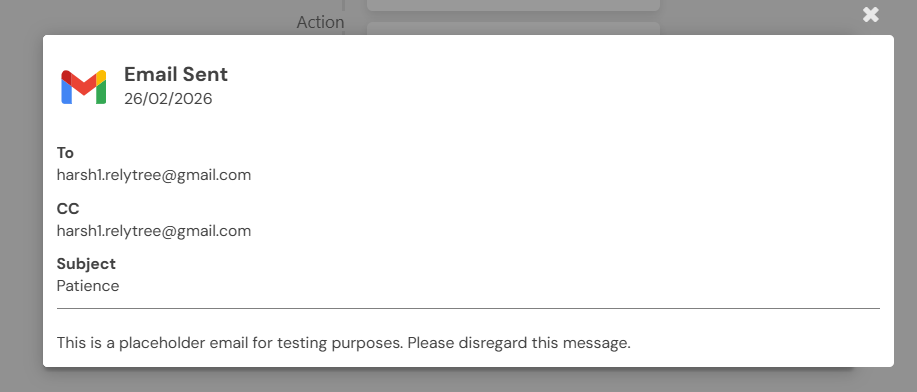
Step 6: Once successful, turn Automation ON.