Stackby allows users to easily import data from Airtable without the need to export CSV files manually and then importing. We have now launched an Airtable Base Importer.
Steps:
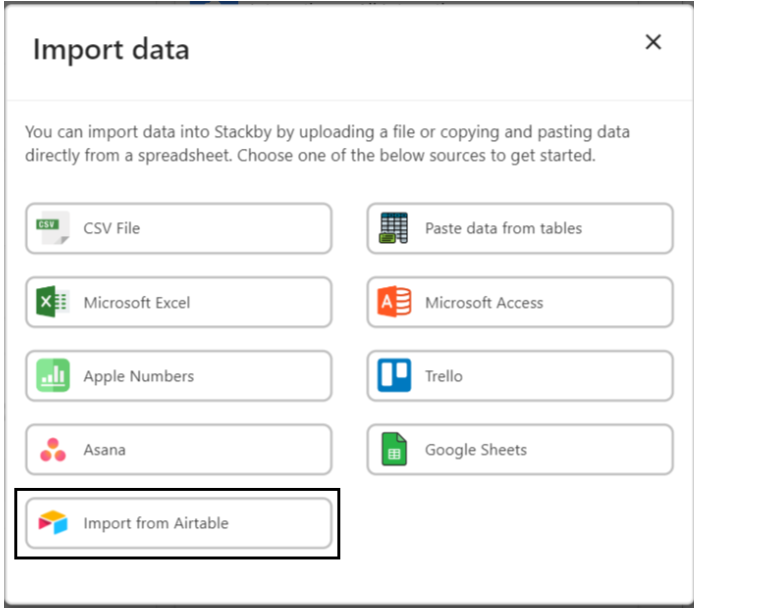
From the dashboard, look at the top navigation bar, and click on the Import Data button. This will open a list of import options available in Stackby.
In the dropdown, you will see various data sources from which you can import.
You need to bring and add a personal access token. Open Airtable account and go to builder Hub.
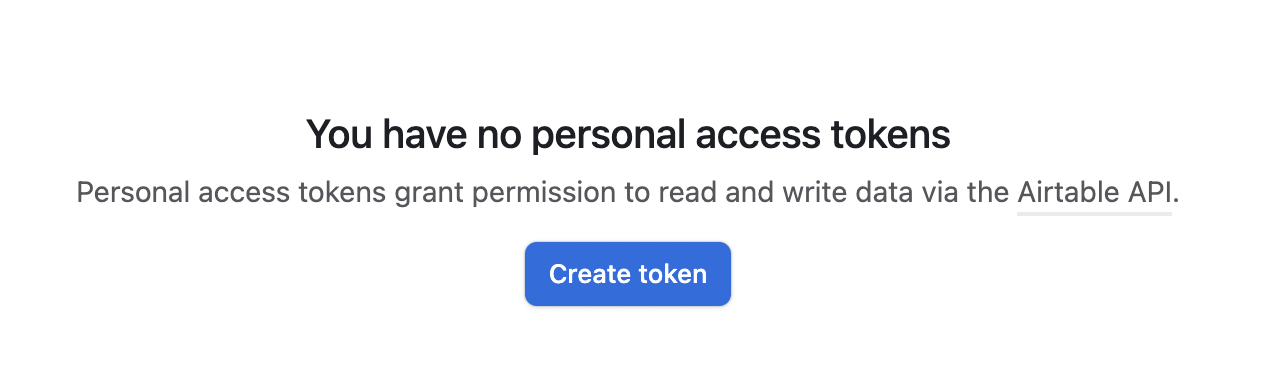
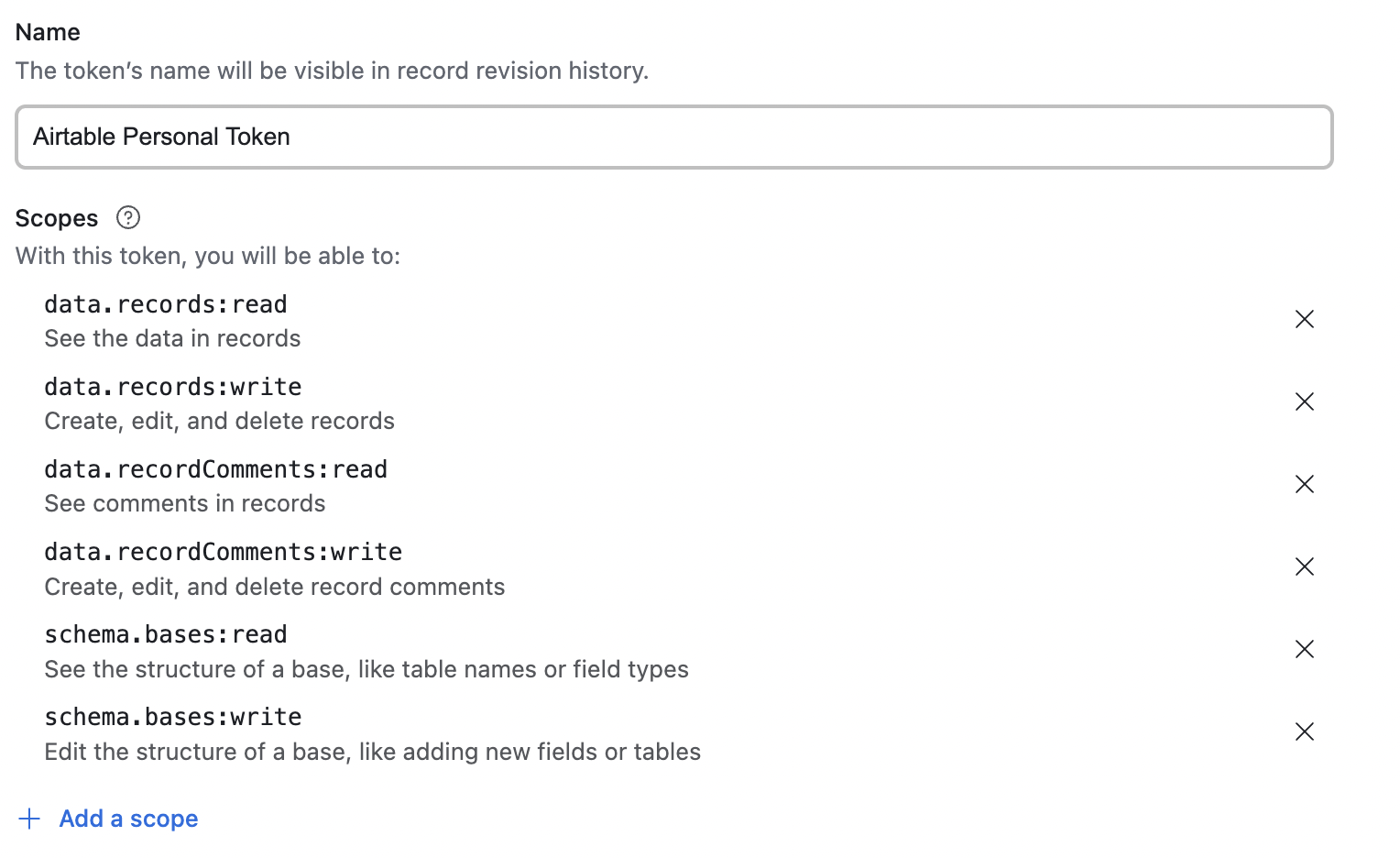
Click on Create Token —> Add all Scopes available
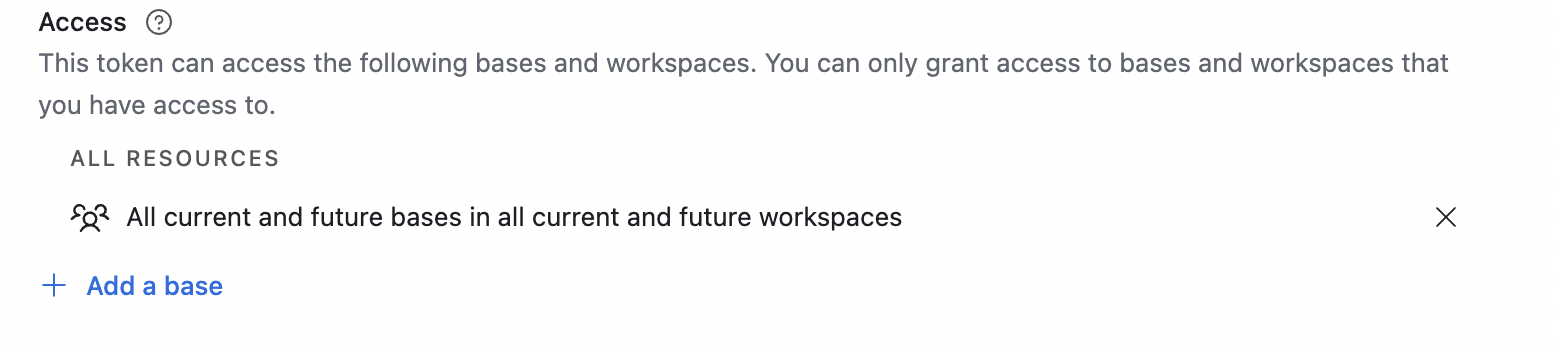
Once the scopes are added, please select ‘Access’ and select Access to all bases and workspaces.
Your token gets created
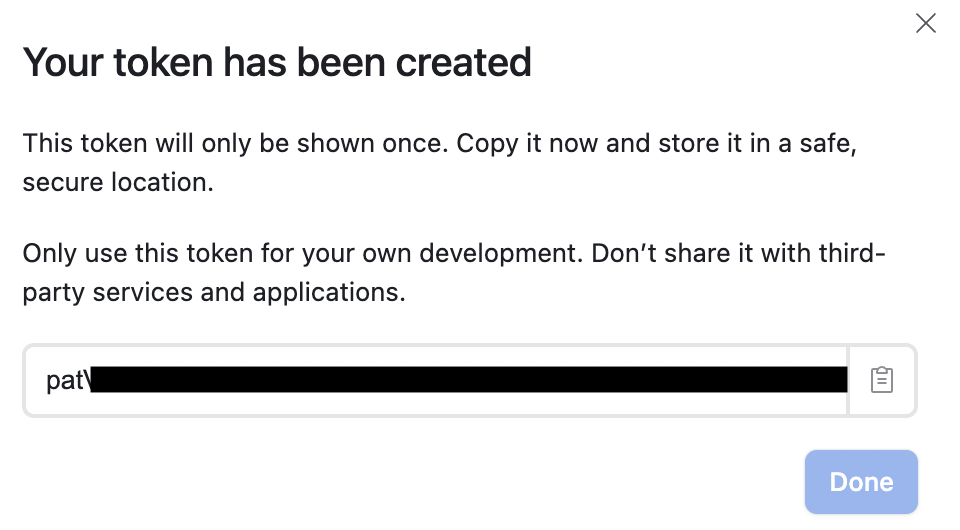
Copy your token and paste it into Stackby.
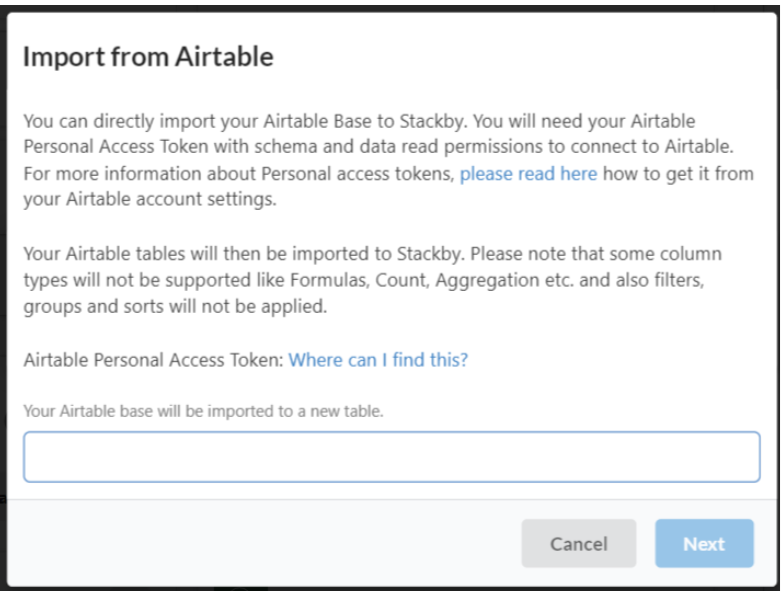
Once the connection is successful, you will be shown a list of your Airtable bases. Select the Airtable base from which you want to import the data. It will start importing.
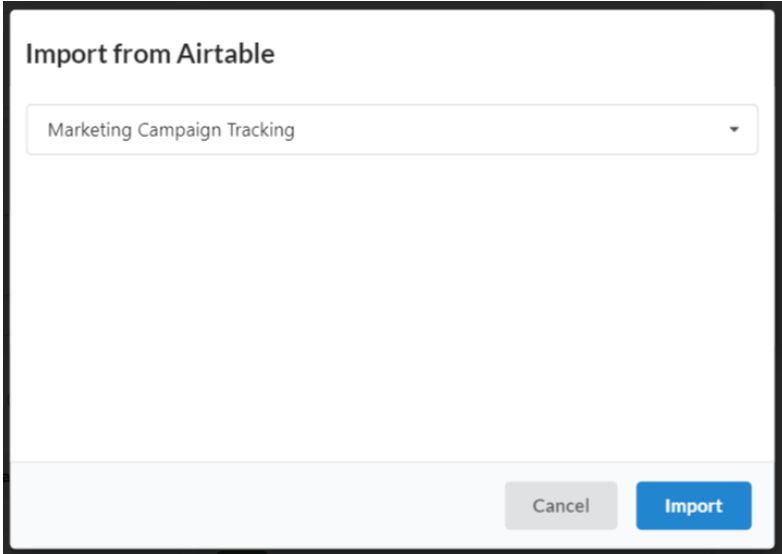
Once you click on import, you will get a confirmation message and you will receive an email.
You will see that stack in your dashboard. You can open that stack from your email.
Ensure that all rows, columns, and field types (e.g., text, date, number) are properly formatted and consistent with your Airtable data.