
You asked for it and we brought it!
Now, receive an Email Notification when someone submits a new entry through the form.
To turn on email notifications for a form:
Open your Stackby table
Go to the Form View you've created
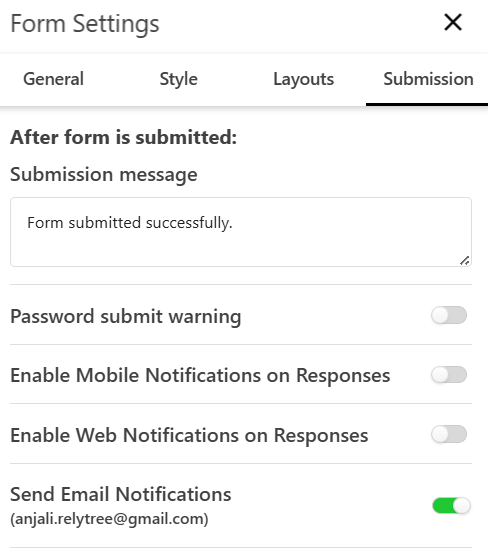
Click the ⚙ Form Settings button (top-right)
Navigate to the Submission tab
Toggle Send Email Notifications to ON
Your email (the logged-in user) will appear below this toggle
🔔 Currently, notifications are sent to the table creator or logged-in user who enabled the setting
Click Save
That’s it! You’ll now receive an email every time someone submits the form.

Hot Tip: If you want different team members to receive the email notification as well, they just need to login to their Stackby Account and follow the same steps above.