company logo

Centro de ayuda

Ir a Stackby
Stackby BlogStackby CommunityStackby YouTube ChannelStackby Facebook GroupSign up for Free
Todos los apartadosCustomizing your StackAdvanced Form FeaturesOverview of Updatable Form Settings

Overview of Updatable Form Settings

Learn how you can customize your updatable forms and filter records

In this article, we will be going through each and every option provided in the Update Form Settings of Update Form Layout.

  1. General Tab

  2. Style Tab

  3. Layout Tab

  4. Submission Tab

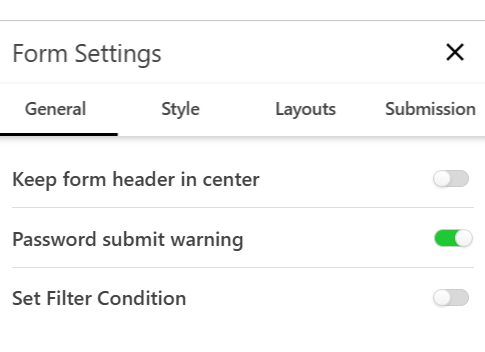
πŸ”§ General Tab Options

1. Keep form header in center

  • Description: Aligns the form's title and description to the center.

2. Password Submit Warning βœ… (Enabled in the screenshot)

  • Description: Displays a warning if the form detects that a user is attempting to enter sensitive information like passwords.

3. Set Filter Condition

  • Description: Allows you to apply conditions or filters to the form, so only rows that meet certain criteria are shown or linked.

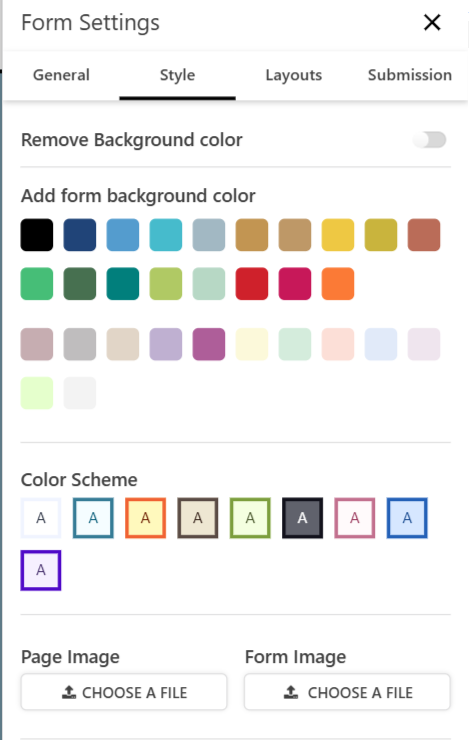
🎨 Style Tab

This section helps you customize your form’s look and feel.
Setting

Description

Background Color

Choose from a palette of colors or disable background color.

Color Scheme

Customize form text color and background combinations.

Page Image / Form Image

Upload a header or background image to brand your form.

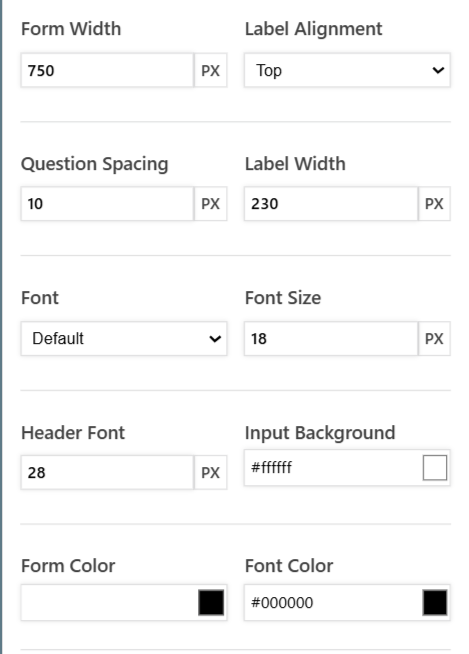
Form Width

Set the total width of the form in pixels (e.g., 750px).

Question Spacing

Label Width

Adjust vertical spacing between questions.

Set how wide labels appear beside fields (useful with left-aligned labels).

Font / Font Size / Header Font

Customize font style and size for body and headers.

Label Alignment

Position labels (Top, Left, or Right of input  fields).

Form Color / Font Color

Set the background color and text color of the entire form.

Input Background

Set the background color of input fields.


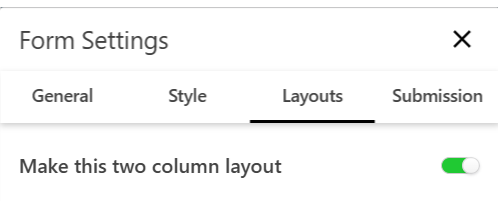
🧩 Layouts Tab

Choose how your form is structured.

Setting

Description

Make this two-column layout

Splits the form into two columns – ideal for wider screens or compact forms.


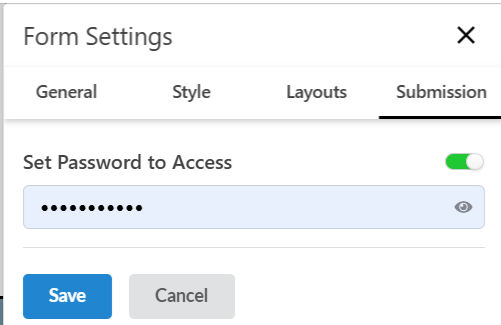
πŸ” Sumission Tab

When this toggle is enabled, users must enter a password before they can access and fill out the form.

It adds an extra layer of security to restrict form access only to authorized users.


ΒΏTe ha ayudado esta respuesta?
😞
😐
😁