Imagine adding records in multiple tables via a single form - this is what this form feature can do.
When you're linking records from one table to another (via a Link column type), you might want to create a new record on the fly—for example, adding multiple new tasks while linking to a project. By default, Stackby shows all fields from the linked table, but that may not always be ideal.
You can use this form in multiple ways. Some examples are:
Adding multiple products with quantity, price, color in a single form
Adding multiple cofounder details to a startup
With this option, you can customize what fields appear in that record creation form popup, making the process simpler and more relevant for your workflow.
And most importantly, the records are added in two different tables via a single form submission.
Go to the Link Column Settings
Click on the dropdown icon in your Link column header, then choose Column Settings.
Toggle ‘Edit Record Creation Form’
Enable the Edit record creation form toggle. This will let you modify the form layout.
Click ‘Change column configuration for records’
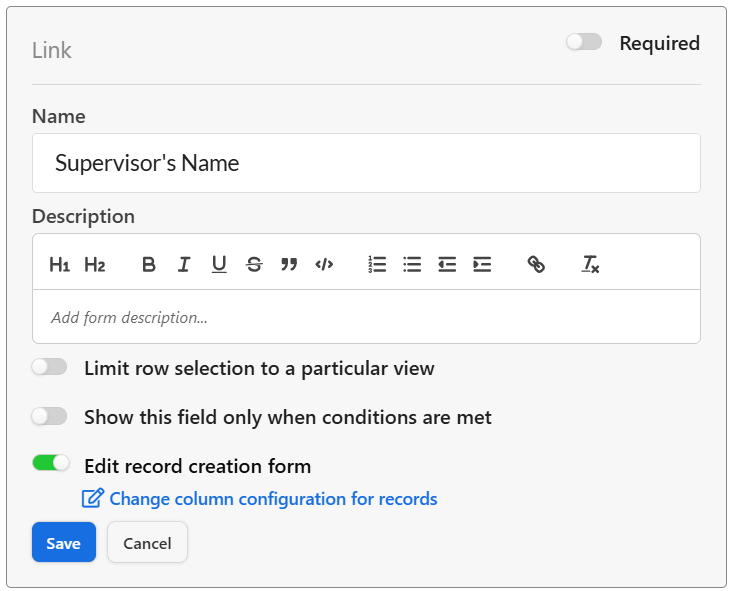
You’ll be directed to a form-style editor where you can:
Add or remove fields
Reorder them as needed
Hide unnecessary fields
Add default values or conditions
Make it required or optional
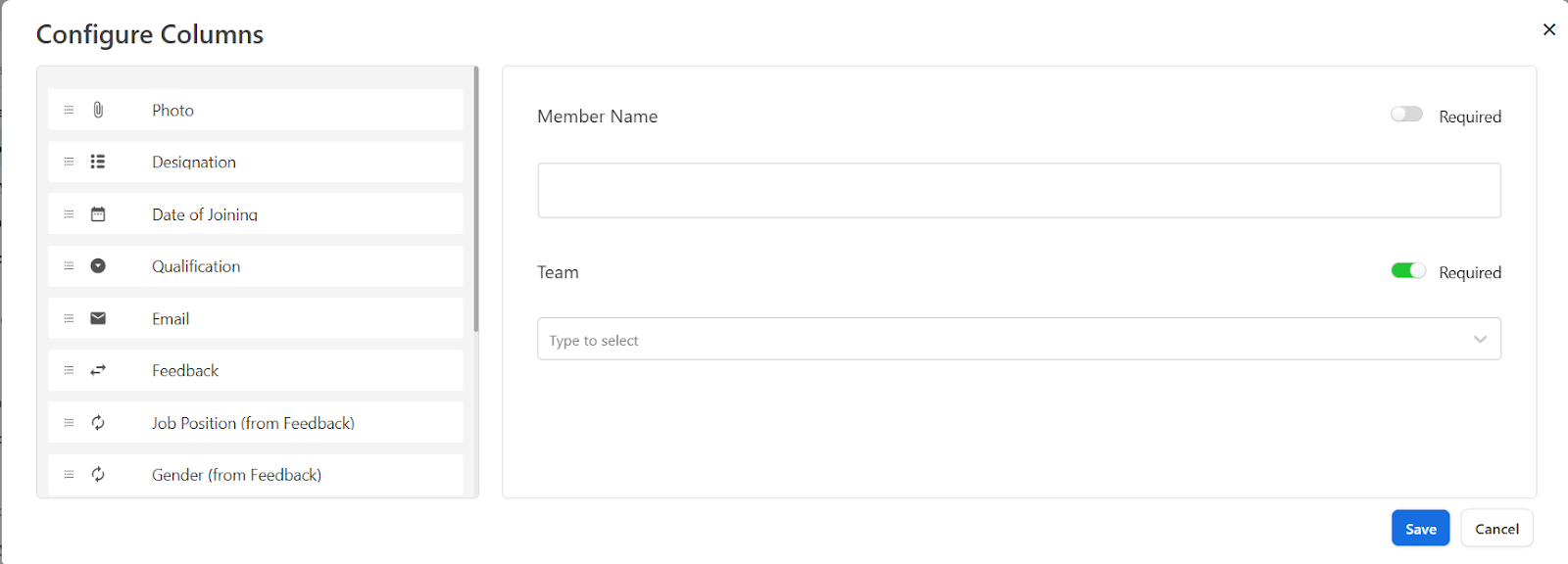
Click ‘Save’
Once configured, only the selected fields will show when creating a new record through this column.
Combine this with conditional logic using the “Show this field only when conditions are met” option for advanced form workflows inside Stackby.